
MAC AUDIO CUE PLAYBACK GUIDE
Run sound effects and music cueson a Mac.
Prepare and trigger the right sound at the right moment in theatre, live events, ceremonies, exhibitions, and streams. This guide covers media preparation, the next cue, long music beds, show-section changes, and routing to audio hardware.
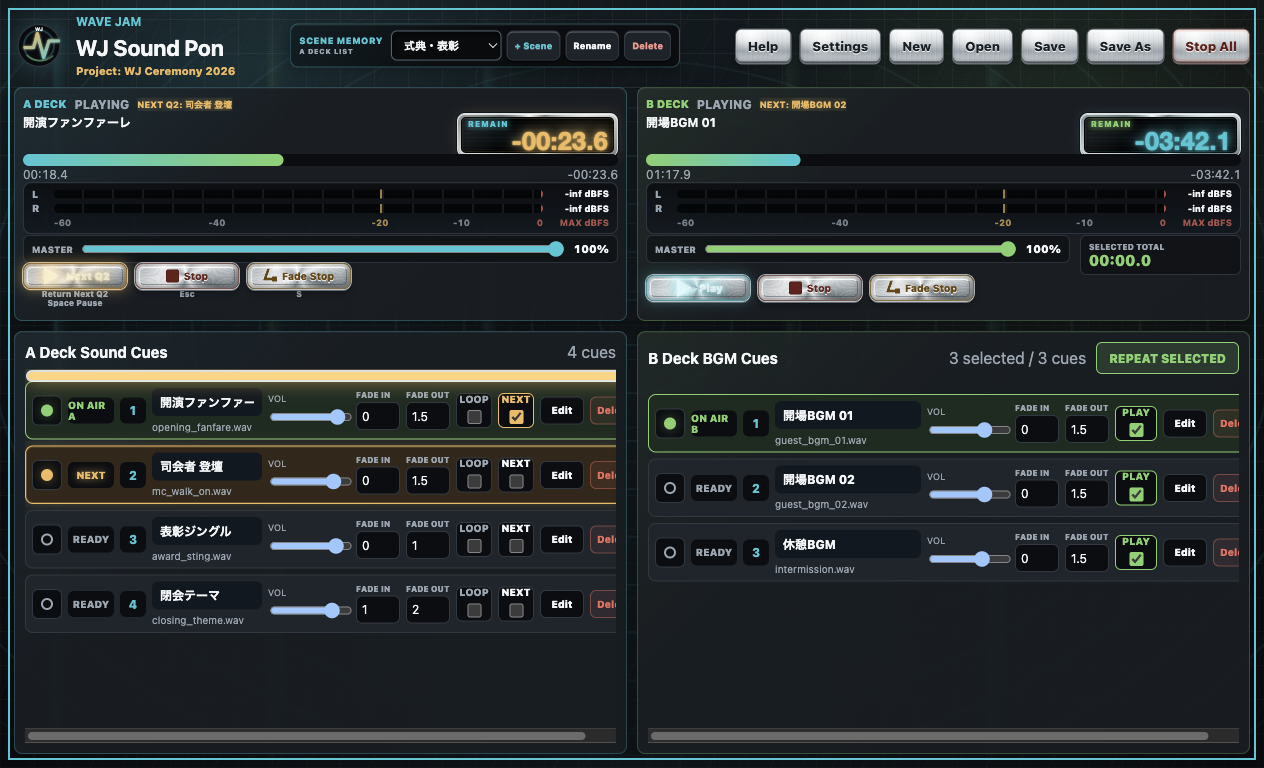
A CUE-BASED WORKFLOW
Audio cue playback follows the running order.
Sound effects and music are prepared before the show, then played from cues in response to the script, stage manager, host, or production call. Unlike a normal playlist, live operation needs a clear next cue and a way to keep the current bed playing while the next sound waits.
Sound effects
Trigger dialogue effects, entrances, awards, transitions, and other single sounds from the beginning.
Stings and jingles
Mark sections of a stream, ceremony, conference, or live show with short, repeatable cues.
Music beds
Run walk-in, holding, or changeover music separately and loop it when timing is uncertain.
Show sections
Use Scene Memory to switch the standby A-deck cue list for each act, session, or segment.
STEP-BY-STEP WORKFLOW
From media preparation to show operation.
This order keeps the operator focused on cue state and recovery, not only filenames.
Organize the actual show audio
Separate effects, stings, walk-in music, and changeover tracks by show section. Check leading silence, start/end points, loudness differences, and file duration.
Add single-shot cues to Deck A
Arrange effects and stings in running order. WJ Sound Pon can insert audio at the beginning, between existing cues, or at the end of the list.
Add long music tracks to Deck B
Operate music independently from Deck A effects. The selected B-deck track can repeat when holding time is not fixed.
Choose NEXT, LOOP, and Fade Stop behavior
Decide whether the current cue loops while the next cue waits, and whether a fade stop should leave the following cue in READY.
Rehearse through the real audio path
Connect the production audio interface or console. Confirm A/B devices, channels, gain, stop controls, and the operator’s recovery sequence.
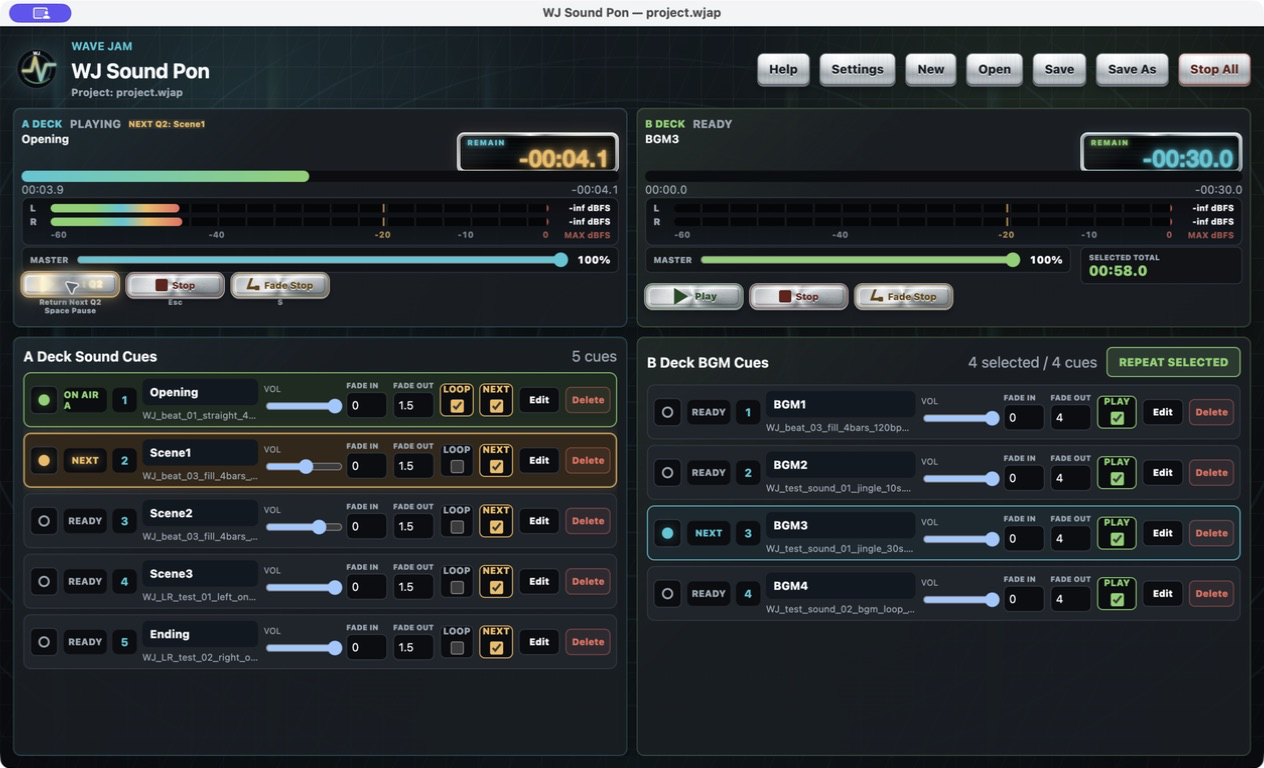
LOOP + NEXT
Keep the current music running while the next cue waits.
With LOOP and NEXT enabled together, the current cue repeats while the following cue remains visible in orange. The operator can wait for the production call, then start the prepared cue with Play or Return.
- Current and next cues remain visually distinct
- Normal Stop and Fade Stop leave different standby states
- Remaining time, position, and stereo levels stay visible
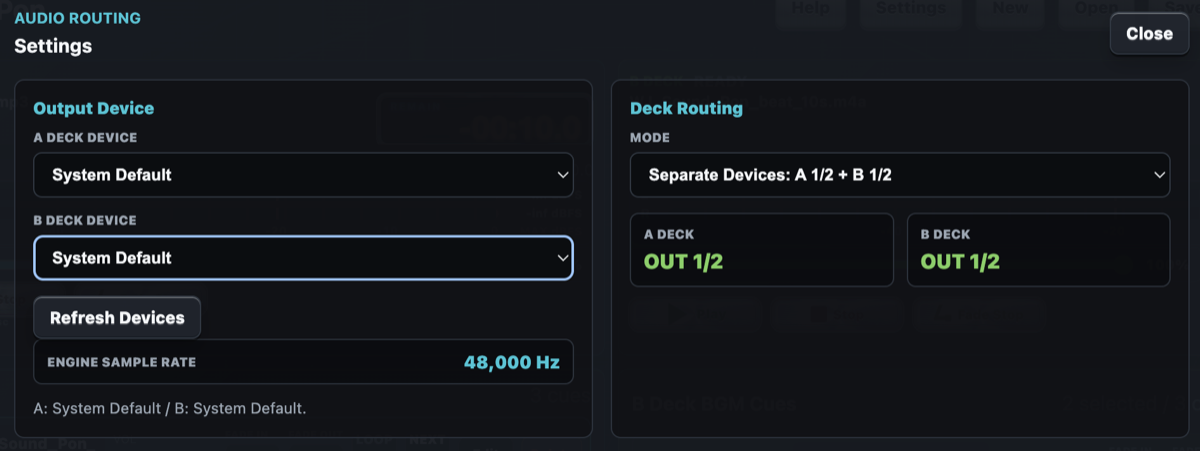
A/B OUTPUT ROUTING
Send effects and music to separate outputs.
Compatible external audio hardware can provide different devices or channels for Deck A and Deck B—for example, A on USB 1/2 and B on USB 3/4.
WAVE JAM has verified independent stereo A/B routing over USB with a Yamaha DM3. Always test the exact hardware, driver, USB cable, and macOS combination planned for the show.
See the Yamaha DM3 field test →PRE-SHOW CHECKLIST
Check more than basic playback.
A production-ready test includes how audio stops, what remains selected, and what the operator does next.
- All source files are saved with the project and still load after Save As
- Start and end points remove unintended silence without cutting wanted audio
- Effects and music levels are balanced with headroom at the console
- A/B devices and output channels match the venue signal plan
- Looping cues pass through several boundaries without an unintended stop
- Play, Pause, Stop, Fade Stop, Escape, and Return responsibilities are understood
- Changing Scene Memory leaves the currently playing audio uninterrupted
- Notifications, power, sleep behavior, and backup audio are covered in the show plan
RELATED GUIDES
Continue with the relevant workflow.
3-MONTH FREE TRIAL
Test with your Mac and audio hardware.
Load production media and verify A/B output routing, cue transitions, and recovery controls before purchasing.